

Choose an execution mode
Section titled “Choose an execution mode”Control whether Antigravity CLI pauses to ask before modifying files or executing commands during a session.
Before you begin
Section titled “Before you begin”Make sure you meet the following prerequisites:
- Install Antigravity CLI.
- Have an active project repository with source code to edit.
Available modes
Section titled “Available modes”Each execution mode makes a different tradeoff between conversational autonomy and developer oversight. The following table shows how Antigravity CLI handles file operations, command execution, and planning in each mode:
| Mode | Behavior | Best for |
|---|---|---|
default | Pauses for interactive diff review before modifying or creating files, and asks before running terminal commands. | Standard development, reviewing sensitive code changes, and careful refactoring. |
accept-edits | Automatically approves file creations and edits inside your workspace, but still asks before running terminal commands. | Rapid prototyping, iterating on trusted code, and reducing file-edit interruptions. |
auto (Preview) | Automatically approves workspace file edits, runs terminal commands in the sandbox by default, and automatically evaluates commands outside the sandbox so safe, reversible commands run without prompting. Available in v1.3.5+ on macOS and Linux and v1.4.4+ on Windows; requires the terminal sandbox. | Autonomous workflows where safe edits and commands proceed without interruption while irreversible actions still prompt for confirmation. |
plan | Prepends the /plan instruction prefix to analyze and outline steps before writing code. | Exploring unfamiliar architecture or designing complex multi-step features. |
Cycle execution modes during a session
Section titled “Cycle execution modes during a session”You can switch execution modes mid-session without interrupting active tasks or restarting the terminal:
- Press Shift + Tab inside the prompt box to cycle through the active sequence:
default>accept-edits>auto>plan>default. Whereautomode isn’t available, cycling skips directly fromaccept-editstoplan. - Observe the mode indicator in the bottom-right status bar (
accept-edits,auto, orplan) and the prompt placeholder hint (such asAuto mode: edits & safe commands auto-approved (shift+tab to cycle)) to confirm your active mode.
Review modifications in default mode
Section titled “Review modifications in default mode”In default mode (request-review), Antigravity CLI pauses before applying any file writes to disk and renders an inline, syntax-highlighted diff preview.
# Launch in default interactive review mode
agy
The following example shows a pending file edit, with the diff and the prompt to accept or reject it:
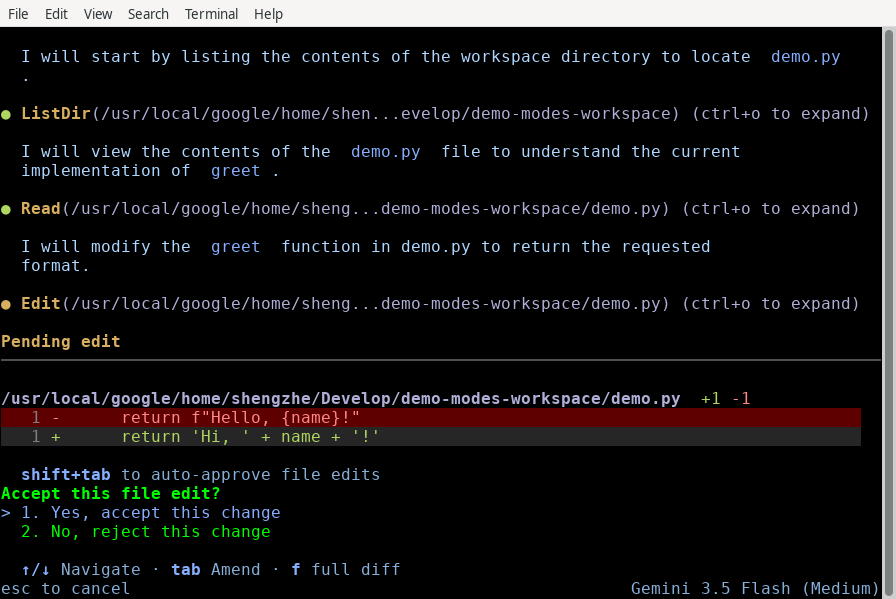
When Antigravity CLI asks Accept this file edit?, you can take any of the following actions:
- Press 1, or highlight Yes, accept this change and press Enter, to save the change to disk.
- Press 2, or highlight No, reject this change and press Enter, to keep the existing file unchanged.
- To reject the edit and tell the agent what to do differently, highlight No, reject this change, press Tab, type your instructions, and press Enter.
- Press f to open a full-screen, scrollable diff review with three context lines and hunk separators.
A pending file edit stays open until you accept or reject it. Pressing Esc doesn’t dismiss it.
New file creation previews
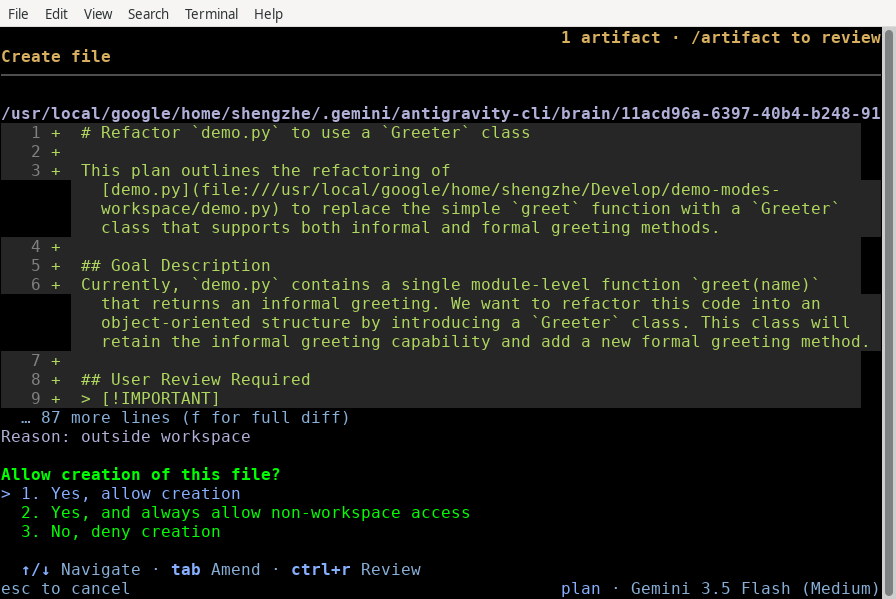
Section titled “New file creation previews”When Antigravity CLI creates a new file, the confirmation panel shows a Create file header, the file path (for example, src/utils/formatter.py), and an addition-only diff preview, followed by this prompt:
Allow creation of this file?
> 1. Yes, allow creation
  2. No, deny creation
If the file is outside your workspace, the panel also shows Reason: outside workspace and adds Yes, and always allow non-workspace access as the second choice.
The following example shows the Create file panel for a new file, src/utils/formatter.py:
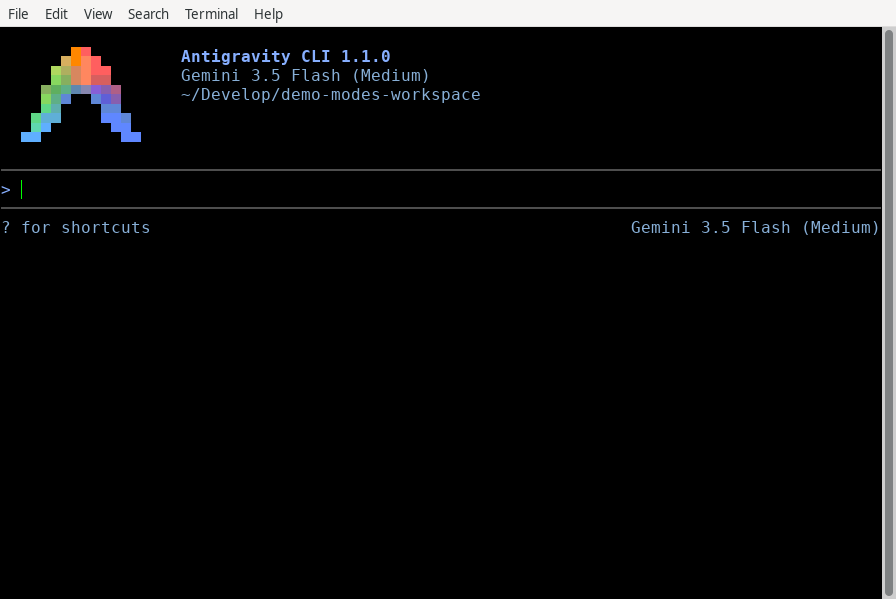
As with file edits, press f to open the full diff, or highlight No, deny creation and press Tab to tell the agent what to do differently. Pressing Esc denies the file creation.
Auto-approve edits with accept-edits mode
Section titled “Auto-approve edits with accept-edits mode”Select accept-edits mode when you want Antigravity CLI to work in longer, uninterrupted stretches across your filesystem without pausing for each file modification.
# Launch directly in accept-edits mode
agy --mode=accept-edits
In this mode, all standard file creations, edits, and replacements inside your workspace run automatically. Subagents spawned during the session also inherit the accept-edits setting, preventing background file writes from queueing for manual approval.
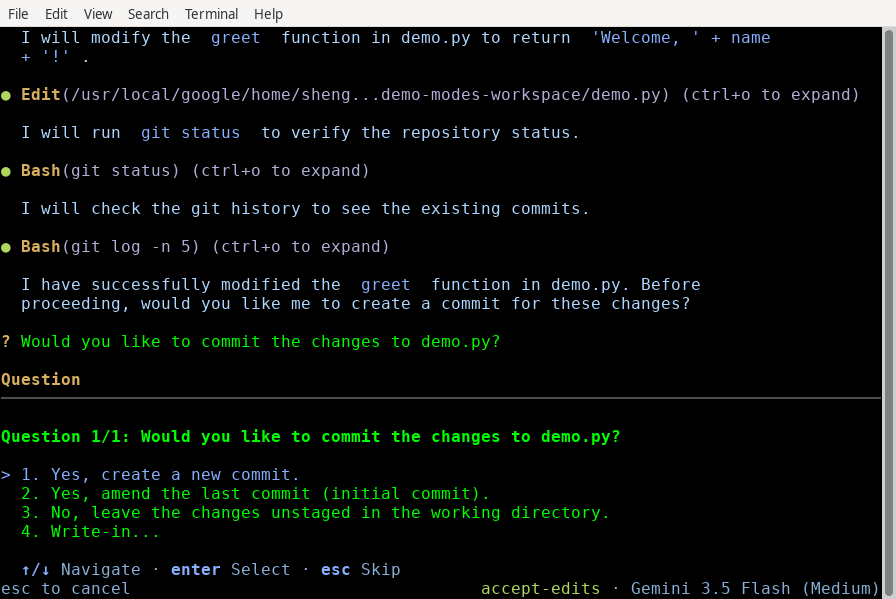
When accept-edits mode is active, the bottom-right status bar shows accept-edits:
Automatically evaluate commands with auto mode
Section titled “Automatically evaluate commands with auto mode”auto mode extends accept-edits to terminal command execution so routine development tasks proceed without manual confirmation prompts.
# Launch directly in auto mode
agy --mode=auto
When auto mode is active:
- Workspace file edits: File creations and modifications inside your active workspace are approved automatically, including pending writes from background subagents.
- Sandboxed execution by default: Terminal commands run inside the native OS terminal sandbox (
sandbox-execon macOS, kernel namespaces on Linux, process security environments on Windows) by default. - Automatic safety evaluation for commands outside the sandbox: Any command that needs to run outside the terminal sandbox is automatically evaluated before execution. Safe, reversible commands (such as workspace build, test, lint, and format commands) run automatically without asking for approval, while irreversible or high-risk actions still pause and prompt for your confirmation.
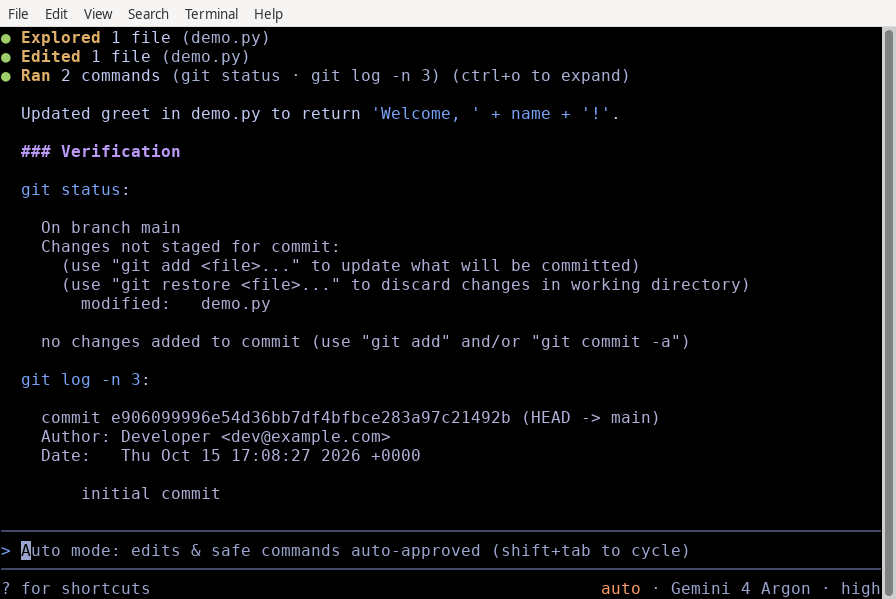
The bottom-right status bar shows auto, and the prompt input box shows Auto mode: edits & safe commands auto-approved (shift+tab to cycle):
Requirements and limitations
Section titled “Requirements and limitations”auto mode requires the terminal sandbox:
- On Windows, the sandbox requires Windows 11 24H2 or later with the August 2026 update or later.
- Starting in
v1.4.4, if the sandbox isn’t available on your machine—for example, on Windows 10, earlier Windows 11 builds, or Linux hosts and some containers that block unprivileged user namespaces—automode isn’t offered.
In headless mode, if auto mode isn’t available, --mode=auto prints a warning and continues in default mode.
Analyze tasks before editing with plan mode
Section titled “Analyze tasks before editing with plan mode”Use plan mode when taking on complex refactoring, multi-file architectural changes, or unfamiliar codebase investigations.
# Launch directly in planning mode
agy --mode=plan
When plan mode is active through Shift + Tab cycling or the --mode flag, the CLI automatically prepends the /plan instruction prefix to your prompts. The agent investigates relevant files using read-only search and file-viewing tools and presents a structured execution outline for your approval before writing code.
The bottom-right status bar shows plan while the mode is active:
Persist or override your default mode
Section titled “Persist or override your default mode”You can set your preferred startup execution mode permanently across sessions or override it for specific invocations.
Using the interactive settings panel
Section titled “Using the interactive settings panel”To inspect or update your default mode mid-session:
-
Open the interactive settings panel:
/config -
Highlight Agent Mode with ↑/↓.
-
Press ←/→ to change it, or press Enter to open the list of modes, where the current mode is marked
(current):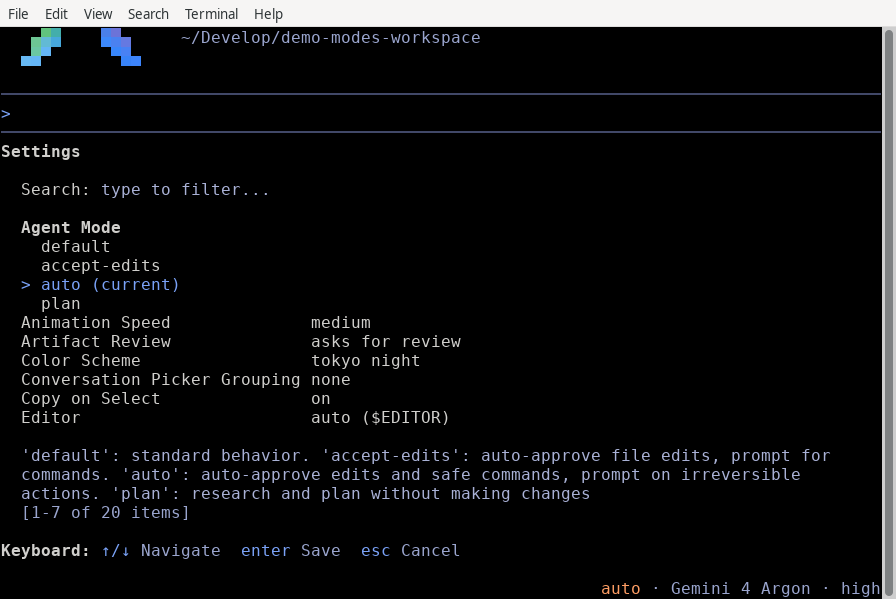
Highlight a mode and press Enter. Either way, the change is written to
settings.jsonand applies to your session immediately. -
Press Esc to close the panel.
Setting agentMode in settings.json
Section titled “Setting agentMode in settings.json”Set agentMode directly inside your user or project configuration file ("accept-edits", "auto", or "plan", or omit/"" for default):
{
    "agentMode": "auto"
}
The CLI loads this file from ~/.gemini/antigravity-cli/settings.json at startup and applies your chosen baseline execution mode.
Command-line flag overrides
Section titled “Command-line flag overrides”Pass the --mode flag (accept-edits, auto, or plan) to temporarily override your persistent default mode for a single terminal run:
# Override settings.json to run in auto mode or planning mode
agy --mode=auto
agy --mode=plan
Common mistakes
Section titled “Common mistakes”| Mistake | Why it fails | Fix |
|---|---|---|
Expecting sandbox in Shift + Tab cycling | sandbox is an OS containment permission setting, not an execution mode (auto mode enables the terminal sandbox automatically) | Use --mode=auto, pass --sandbox, or enable Sandbox Mode in /config |
Using legacy /planning or /fast commands | These vestigial commands were removed in 1.1.0 | Press Shift + Tab to cycle modes or type /plan before your prompt |
Passing --permission-mode | agy uses --mode (--mode=accept-edits, --mode=auto, or --mode=plan) for execution overrides | Run agy --mode=accept-edits, agy --mode=auto, or check agy --help |
Next steps
Section titled “Next steps”Explore the following guides to further customize your CLI workflow:
- Permissions: Configure fine-grained tool approval rules and wildcard matching.
- Settings, rendering, and keybindings: Customize configuration overrides and interactive preferences.
- Background tasks and subagents: Manage parallel subagent execution and asynchronous task queues.