

Visual Studio
Section titled “Visual Studio”The Antigravity for Visual Studio extension brings Google’s agentic engineering platform to Windows and .NET developers working with complex enterprise solutions and multi-project MSBuild architectures.
1. Download Visual Studio 2026Get Visual Studio 2026 for Windows if you don't have it installed yet.
2. Install Antigravity extensionDownload the official Google Antigravity VSIX extension from the Visual Studio Marketplace.
Prerequisites
Section titled “Prerequisites”Ensure that you meet the following prerequisites before installing the extension:
- Visual Studio: Visual Studio 2026 (version 17.8 or later) on Windows 10 or 11.
- Antigravity entitlement: A valid Google Account with any Antigravity plan (including the free tier) or a Gemini Enterprise entitlement.
Installation and setup
Section titled “Installation and setup”Complete the following steps to install the Visual Studio extension:
- Open Visual Studio 2026.
- In the top menu, navigate to Extensions > Manage Extensions.
- In the search box in the top-right corner, enter Google Antigravity.
- Select the official Google Antigravity extension published by Google and click Download.
- Close all Visual Studio instances to allow the VSIX installer to complete the installation.
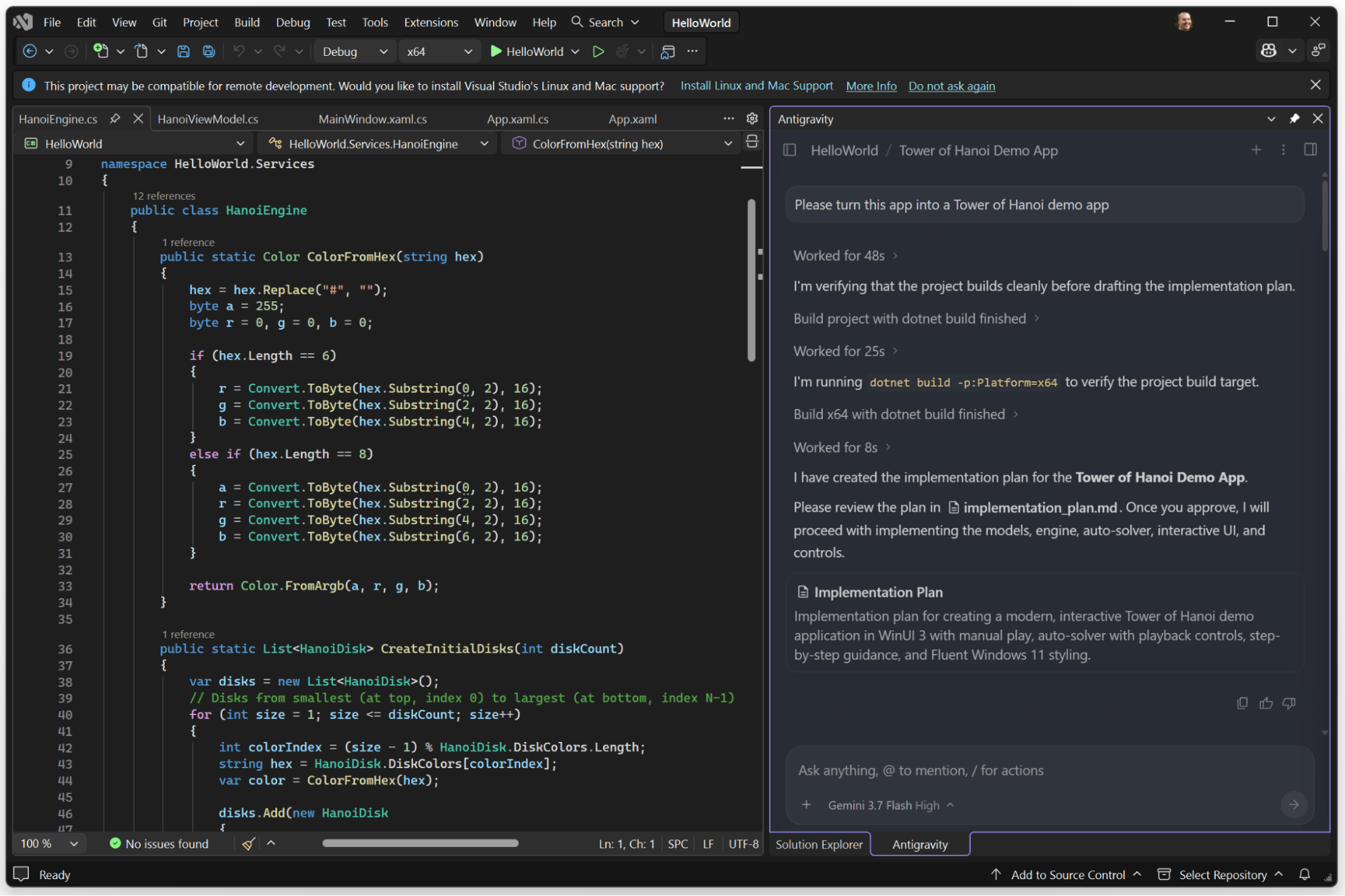
- Reopen Visual Studio and click the Antigravity tool window button in the right margin, or press
Ctrl+\, Ctrl+A.
Authentication and sign-in
Section titled “Authentication and sign-in”Antigravity uses a unified sign-in across all surfaces. Learn more about authentication and entitlements:
Gemini Enterprise authenticationLearn how enterprise developers and administrators configure sign-in with Google Cloud credentials and IAM policies.
Antigravity 2.0 overviewLearn how sign-in and account entitlements work across Antigravity 2.0 and developer surfaces.