Settings
Section titled “Settings”Configure preferences, execution boundaries, command permissions, and tool telemetry across Antigravity surfaces.
Antigravity App
Section titled “Antigravity App”Settings architecture
Section titled “Settings architecture”Antigravity features a hierarchical settings architecture designed to give you granular control over your development environment. Settings are split between global application preferences and isolated project-level boundaries to ensure robust security and flexible workspace configurations.
Accessing settings
Section titled “Accessing settings”You can open the Settings panel using any of the following methods:
- Keyboard shortcut: Press Cmd + , on any active surface inside the application.
- Sidebar navigation: Click Settings at the bottom of the left sidebar.
- Project settings: Click the gear icon located next to a specific project.
The four settings categories
Section titled “The four settings categories”Settings are organized into four distinct scopes to keep configurations clean and isolated:
Global settings
Section titled “Global settings”Global settings apply across all workspaces:
- Account settings: Manage authentication sessions and toggle telemetry (enable or disable sharing interaction logs to improve models).
- Global permissions: Centralized default tool boundaries that apply to all
conversations:
- Permission Preset: Choose Request Review, Default,
Auto (Preview) (
v2.23.0+), or Turbo. You can also choose a preset from the permissions picker in the message box composer (v2.23.0+), which changes your global preset, or the project’s preset if the project overrides it. To remove a project override, choose Use Global Settings. - Fine-grained allow, ask, and deny rules (refer to Agent permissions).
- Permission Preset: Choose Request Review, Default,
Auto (Preview) (
- Appearance: Customize visual themes and panel layouts.
- Browser integration: Configure how the agent interacts with web surfaces.
- Model usage: Choose and configure default reasoning models.
- Customizations: Manage Model Context Protocol (MCP) servers, custom skills, and plugins.
Project settings
Section titled “Project settings”Project settings apply exclusively within the scope of a specific project:
- Folders: Define the list of local folders associated with the project.
Antigravity automatically detects Git configurations for these folders to
handle conversation targets:
- Local: Select this in the new conversation view to work directly in the existing folders.
- Worktree: Select this to start a new worktree in the folders. If a folder does not have Git, the existing local folder is used instead.
- Agent settings: Configure project-specific agent behaviors:
- Permission settings (updated permission system): Choose the project’s
Permission Preset—Inherit Global, Request Review, Default,
Auto (Preview) (
v2.23.0+), or Turbo—controlling how the agent runs shell commands, accesses files, and uses the terminal sandbox (refer to Agent permissions and Agent settings). - Terminal execution policy (previous permission settings): Control how the agent runs shell commands.
- Outside of folder file access policy (previous permission settings): Define how the agent accesses files outside the project boundary (Always Allow, Always Ask, or Always Deny).
- Sandbox mode (previous permission settings): Toggle the terminal sandbox container on or off within the custom security preset (refer to Terminal sandbox).
- Permission settings (updated permission system): Choose the project’s
Permission Preset—Inherit Global, Request Review, Default,
Auto (Preview) (
- Project-level permissions: Configure permissions at the project level. As you interact with an agent, you accumulate permission requests that can be automatically added to project permissions.
- Customizations: Derived from both global and project-specific customizations. You can view all skills originating from each folder added to the project.
Standalone conversations
Section titled “Standalone conversations”You can also start conversations outside of a project:
- Behavior: Standalone conversations do not have a configurable folder and instead run in a local scratch directory.
- Settings: Standalone conversations can have their own settings (such as terminal execution, file access policies, and permissions) similar to projects, but operate independently of any project structure.
Miscellaneous
Section titled “Miscellaneous”Access shortcuts and feedback tools:
- Shortcuts: View and customize keyboard shortcut configurations.
- Feedback: Access the feedback form to send reports directly to the team.
Data collection settings
Section titled “Data collection settings”The Enable Telemetry setting is located in the Settings panel under the Account section. When toggled on, Antigravity collects interactions for use in evaluating, developing, and improving Antigravity and models that support Antigravity.
Antigravity CLI
Section titled “Antigravity CLI”Configure persistent preferences, customize keyboard shortcuts, toggle terminal display buffers, and manage runtime CLI parameter overrides.
Setting up preferences
Section titled “Setting up preferences”Antigravity CLI stores user preferences in a minimal, forward-compatible JSON configuration profile.
Configuration file location
Section titled “Configuration file location”The persistent settings are saved in a plain JSON format:
~/.gemini/antigravity-cli/settings.jsonThe CLI leverages sparse persistence by writing only values to disk that differ from their system defaults. This keeps your configuration file clean, minimal, and fully forward-compatible with future updates.
Editor autocomplete and validation
Section titled “Editor autocomplete and validation”Antigravity publishes a JSON Schema for
settings.json. Editors that support JSON Schema, such as VS Code and JetBrains
IDEs, use it for autocomplete, hover descriptions, and validation. To turn it
on, add a $schema key at the top of the file:
{
  "$schema": "https://antigravity.google/schemas/v1/settings.json",
  "agentMode": "accept-edits",
  "colorScheme": "tokyo night",
  "notifications": true
}
The CLI ignores $schema and keeps it when it saves the file.
Other configuration files
Section titled “Other configuration files”Keyboard shortcuts, hooks, MCP servers, and plugins are configured in their own files:
- Keyboard shortcuts:
~/.gemini/antigravity-cli/keybindings.json./keybindingsopens the file in your editor. Refer to Keybindings configuration. - Hooks:
~/.gemini/config/hooks.jsonfor all workspaces, or<workspace>/.agents/hooks.jsonfor one workspace./hooksadds, edits, and turns hooks on or off, and saves new hooks to the global file. Hooks don’t go insettings.json: the CLI keeps ahookskey there but never loads it. Refer to Hooks. - MCP servers:
~/.gemini/config/mcp_config.jsonfor all workspaces, which you can manage with/mcp, or<workspace>/.agents/mcp_config.jsonfor one workspace. Use names that differ from your global servers: when two files use the same name, the server that is already running keeps it. Refer to MCP. - Plugins: Installed in
~/.gemini/config/plugins/<plugin>/, or in<workspace>/.agents/plugins/<plugin>/for one workspace. Each plugin can have aplugin.jsonmanifest, described by the plugin manifest schema. Refer to Plugins.
How the CLI reads and saves settings.json
Section titled “How the CLI reads and saves settings.json”- Only non-default values are saved. When you change a setting with
/config,/model,/effort,/statusline,/title, or/permissions, or choose to always allow or deny an action at a permission prompt, the CLI saves only the keys whose values differ from the defaults. Setting an option back to its default removes its key. The CLI replaces the file in one step and makes it readable only by your user (0600). - The file is normalized at startup. When the CLI starts with a valid file, it rewrites the file in its own format, which also removes keys that are set to their default values.
- Unknown keys are kept. The CLI ignores keys it doesn’t recognize, such as
$schemaor a setting from a newer version, and keeps them when it saves the file. - Problems are reported before your session starts. If a key has the wrong type or an unrecognized value, or the file isn’t valid JSON, the CLI opens a Settings Error screen that names the file and the problem. The file isn’t changed until you choose what to do.
For example, an unrecognized colorScheme value opens this screen:
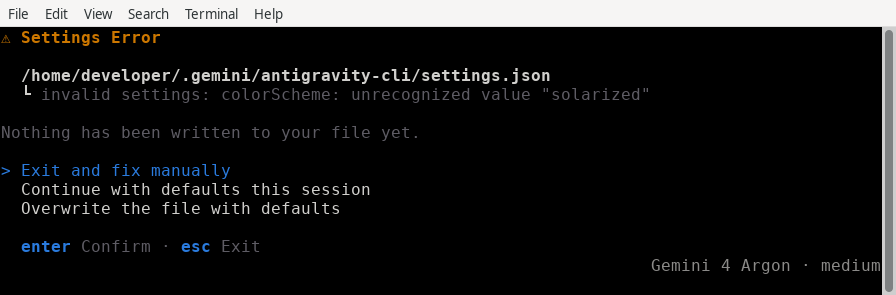
The screen offers three choices:
- Exit and fix manually: Quits the CLI so you can edit the file.
- Continue with defaults this session: Starts the session without changing the file. For an invalid value, the CLI uses the default for that key and applies the rest of your settings, and the next time it saves a setting, it drops the invalid value. If the file isn’t valid JSON, the CLI uses all defaults and doesn’t save any setting changes until you fix the file.
- Overwrite the file with defaults: After you confirm, saves a copy of the
file next to it as
settings.json.corrupted.<timestamp>and resets every setting to its default, including the permission rules in the file.
The interactive settings panel
Section titled “The interactive settings panel”To edit settings directly inside your active terminal session without opening raw JSON files:
-
Type
/config(or its alias/settings) inside the prompt panel and press Enter. The Settings panel opens below the prompt and lists each setting with its current value: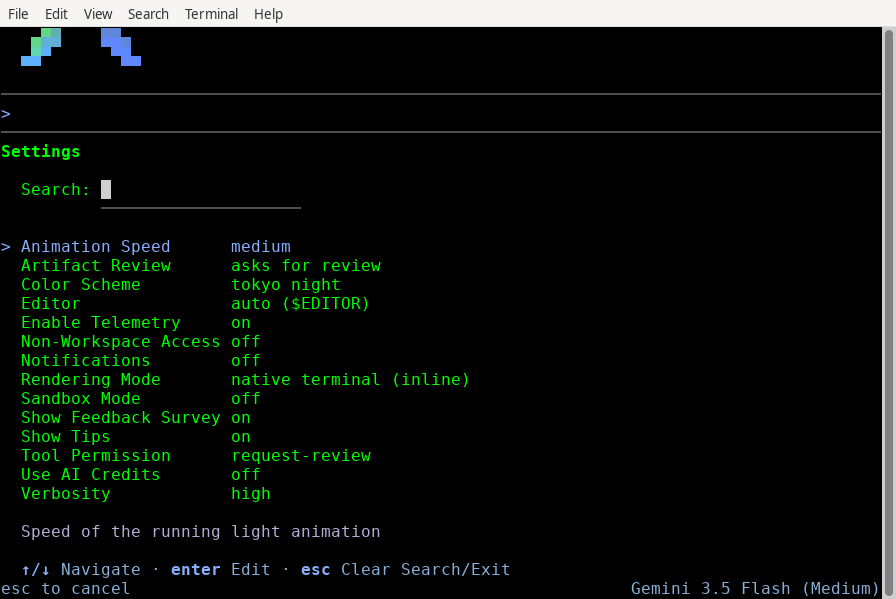
-
Navigate between available options using ↑/↓, or start typing to filter the list in Search.
-
Press ←/→ to change the highlighted setting, or press Enter to open its options, highlight a value, and press Enter to save. Changes are saved right away.
-
Press Esc to close the panel. If you’ve typed in Search, the first Esc clears it. In an open option list, Esc cancels.
Command-line overrides
Section titled “Command-line overrides”You can temporarily override persistent preferences for individual terminal sessions using CLI command flags:
agy --sandbox --model="Gemini 3.8 Flash"When a flag overrides a setting, /config names the flag after that setting’s
value. For example, with --sandbox:
Sandbox Mode on (overridden by --sandbox)Flag overrides apply only to the current session and aren’t saved to
settings.json.
Visual rendering modes
Section titled “Visual rendering modes”The TUI renders in one of two visual modes, set by the Rendering Mode
(altScreenMode) option in /config.
Alt-screen mode (always)
Section titled “Alt-screen mode (always)”This mode opens a dedicated display screen using the terminal’s alternate buffer, creating an immersive, standalone app interface:
- Key features: Integrated scrollback, mouse-wheel scrolling support, custom rendered scrollbar, and clean terminal state restoration on exit.
- Best used for: Standard local development sessions in advanced terminal emulators (such as iTerm2, Ghostty, or WezTerm).
Inline mode (never)
Section titled “Inline mode (never)”This mode renders output sequentially directly within your terminal’s standard stdout pipeline:
- Key features: Preserves entire session history inside your emulator’s native scrollback buffer, does not capture mouse inputs, and works seamlessly alongside standard command outputs.
- Best used for: Remote SSH terminals, terminal multiplexers such as
tmuxorscreen, and low-bandwidth remote sessions.
Configuration options reference
Section titled “Configuration options reference”The interactive settings panel (/config) and settings.json allow you to
customize the CLI’s behavior across several categories. Each option lists its
settings.json key in parentheses. For one table of every key with its type and
default, refer to the CLI
reference.
Safety and permissions
Section titled “Safety and permissions”Manage how the agent interacts with your system and codebase:
- Agent Mode (
agentMode): Controls the session execution mode for file edits, command evaluation, and planning (can also be set per session with--modeor cycled with Shift + Tab; refer to Choose an execution mode):default(the default; leaveagentModeunset): Prompts for interactive diff review before modifying or creating files.accept-edits: Automatically approves workspace file edits and creations.auto(Preview): Automatically approves workspace file edits, runs terminal commands inside the terminal sandbox by default, and automatically evaluates commands that need to run outside the sandbox so safe, reversible commands run without prompting while risky or irreversible commands pause for approval (shown asautoin the bottom-right status bar andAuto mode: edits & safe commands auto-approved (shift+tab to cycle)in the prompt input box).plan: Prepends/planso the agent analyzes the codebase and outlines a plan before making edits.
- Tool Permission (
toolPermission): Controls when the agent asks for your approval before it uses a tool, such as running a terminal command. Deny rules in your permissions block an action in every mode:request-review(default): Prompts for your approval before running write, bash, web, or MCP tools, unless an allow rule covers the action.proceed-in-sandbox: Runs terminal commands without prompting when Sandbox Mode is on and the command runs inside the terminal sandbox; otherwise prompts for review.strict: Prompts before every tool action, including file reads, even when an allow rule matches (overridesautomode).always-proceed: Runs terminal commands, web requests, and MCP tools without prompting, except actions that match an ask or deny rule (highest risk, use with caution; overridesautomode).
- Artifact Review (
artifactReviewPolicy): Controls whether the agent stops for your review when it asks for feedback on an artifact, such as an implementation plan, before it continues. It doesn’t affect file edits, which Agent Mode controls:asks-for-review(default; asks for review in/config): The agent always waits for your review.agent-decides(agent decides): Currently works the same asasks-for-review.always-proceed(always proceeds): The agent continues without waiting for your review.
- Sandbox Mode (
enableTerminalSandbox): When enabled (on), restricts all agent-initiated terminal commands to a secure OS container. WhenagentModeis set toauto, the terminal sandbox is enabled automatically and only commands that need to run outside the sandbox are evaluated for automatic approval. - Non-Workspace Access (
allowNonWorkspaceAccess): When enabled (on), lets the agent read and edit files outside your workspace folders, subject to your Tool Permission, Agent Mode, and permission rules. Set tooffby default for safety.
Display and rendering
Section titled “Display and rendering”Customize the visual experience of the TUI:
- Rendering Mode (
altScreenMode): Controls how the TUI uses your terminal:default(native terminal (inline)): Renders the conversation inline in your terminal’s scrollback and opens full-screen views, such as the diff viewer, in the alternate screen.always(no flickering (altscreen)): Runs the whole TUI in the alternate screen, with its own scrollback, mouse-wheel scrolling, and scrollbar.never(settings.jsononly): Never uses the alternate screen, even for full-screen views.
- Color Scheme (
colorScheme): Selects the visual theme:terminal(default; uses your terminal’s colors),light,solarized light,colorblind-friendly light,dark,solarized dark,colorblind-friendly dark, ortokyo night. - Animation Speed (
runningLightSpeed): Adjusts the speed of the progress indicator animation (fast,medium(default),slow, oroff). - Verbosity (
verbosity): Controls how much of the agent’s work the conversation shows:high: Shows every tool call, command, and thought in full.medium(default): Groups related tool calls and thoughts into short summaries while keeping commands and responses visible.low: Shows only the agent’s responses and collapses tool activity into a token usage summary.
- Show Active Tasks (
hideActiveItems): Shows active subagents and background tasks below the prompt box. On by default; turning it off saves"hideActiveItems": true. - Copy on Select (
copyOnSelect): In alt-screen mode, copies text to the clipboard when you release a mouse selection. On by default. When it’s off, the artifact viewer uses your terminal’s own text selection.
Editor and notifications
Section titled “Editor and notifications”Configure integrations with your host environment:
- Editor (
editor): The external editor the CLI opens for artifacts and files, and for composing prompts (Ctrl + G). Defaults toauto, which uses$EDITORand, if it isn’t set, falls back tovimon macOS and Linux or toeditand thennotepadon Windows. You can also choosevimoremacs, or enter another command with other…. - Editor Mode (
editorMode): The editing model used inside the CLI prompt itself. Defaults todefault(flat text editing); set it tovimfor modal editing. Refer to Vim editor mode. This is independent of theeditorsetting above, which only selects an external program. - Editor Mode › Insert First (
vimInsertFirst): Appears when Editor Mode isvim. When enabled, the prompt starts in Insert mode and a bare Enter submits. Off by default. - Notifications (
notifications): When enabled (on), rings the terminal bell and shows a desktop notification when the agent needs your approval or an answer, or finishes its turn. Off by default.
Conversations
Section titled “Conversations”Control how follow-up messages are sent and how past conversations are listed:
- Queued Messages (
queuedMessages): Controls what happens to a message you send while the agent is working.queue(default, Queue) holds it until the current turn ends, andsend-immediately(Send Immediately) interrupts the agent and sends it right away. Press Alt + M to send one message the other way. - Conversation Picker Grouping (
pickerGrouping): Controls how the/resumepicker lists conversations.none(default) shows one list, most recent first, andgroupedgroups conversations by workspace. Press Ctrl + F in the picker to switch views for that session only.
AI credits and feedback
Section titled “AI credits and feedback”Manage usage, tips, and telemetry:
- Use AI Credits (
useG1Credits): When enabled (on), allows the CLI to use your AI credits for model requests after your plan’s quota runs out. Off by default. This option isn’t shown for business accounts. - Enable Telemetry: When enabled (
on), the CLI collects usage data to help Google improve Antigravity. This choice is saved with your account instead of insettings.json, and it’s always off for business accounts. - Show Tips (
showTips): Toggles the display of helpful usage tips while the agent is generating responses. On by default. - Show Feedback Survey (
showFeedbackSurvey): Enables periodic brief surveys after task completions to help improve the experience. On by default.
Settings available only in settings.json
Section titled “Settings available only in settings.json”The following keys don’t have a /config option. Add them to settings.json to
change them:
clearScrollbackOnResize(boolean, defaulttrue): In inline rendering, clears your terminal’s scrollback when the CLI redraws the conversation, such as after you resize the window. Set tofalseto keep earlier terminal output.disableSlashCommands(boolean, defaultfalse): In headless mode (-p), sends prompts that start with/to the model as typed instead of running them as slash commands or skills. Same as the--disable-slash-commandsflag.historySize(integer, default2000): Number of prompt history entries kept on disk. The CLI trims the history when it exits:-1keeps every entry, and0clears the history.model(string, default""): The model you chose with/model, saved by its label. If that model is no longer available, the CLI uses the default model and shows a warning.modelProvider(string, default""): Set to"gemini"to send model requests directly to the Gemini API with the key inGEMINI_API_KEY. Refer to Using a Gemini API key.trustedWorkspaces(string[], default[]): Folders you chose to trust when the CLI asked. The CLI adds entries for you.useTerminalCursor(boolean, defaultfalse): Uses your terminal’s own cursor shape instead of a block cursor.
For the keys that take an object, such as permissions, refer to Object
settings.
Object settings
Section titled “Object settings”These keys take a JSON object as their value.
permissions
Section titled “permissions”Allow, ask, and deny rules for the agent’s tools. Each rule is an
action(target) string, such as command(git status) or
read_url(github.com), with no space before the opening parenthesis. A deny
rule takes precedence over an ask rule, and an ask rule takes precedence over an
allow rule. The CLI ignores rules it can’t parse. For the supported actions and
how targets match, refer to Agent permissions.
{
  "permissions": {
    "allow": ["command(git status)", "read_url(github.com)"],
    "ask": ["command(git push)"],
    "deny": ["write_file(.env)"]
  }
}
These are the rules in the Global scope of
/permissions. The CLI combines them with the
rules in the Project and Shared scopes.
statusLine and title
Section titled “statusLine and title”Run your own script to draw the status line below the prompt box, or to set the terminal window title. Both keys take an object with these properties:
command(string): Shell command to run, throughsh -c(cmd /con Windows). It receives the session state as JSON onstdin. A leading~expands to your home directory.type(string, default"command"): Optional."command"is the only supported type.enabled(boolean, defaulttrue):falsestops runningcommandbut keeps it insettings.json. ForstatusLine, the built-in status line shows instead.padding(integer, default0):statusLineonly. Blank lines above the status line.stack_with_default(boolean, defaultfalse):statusLineonly. Whentrue, shows your status line below the built-in one instead of replacing it.
Don’t set these keys to true or false. The CLI reads a boolean as
{"enabled": true} or {"enabled": false} without a command, so no script
runs. To turn a script off and keep it, set "enabled": false inside the
object. For script examples and the JSON that scripts receive, refer to Status
line customization and Terminal title
customization.
sandboxProxy
Section titled “sandboxProxy”Sends network traffic from sandboxed terminal commands through your own HTTP
proxy instead of the CLI’s built-in proxy. It applies only while the terminal
sandbox is on, and your proxy then has to enforce any
read_url rules.
{
  "sandboxProxy": {
    "http": {
      "address": "proxy.example.com:3128",
      "certFile": "/etc/ssl/certs/proxy-ca.pem"
    }
  }
}
Set address (the proxy’s host:port) together with certFile (the proxy’s CA
certificate), and username together with password if your proxy needs them.
If either pair is incomplete, the CLI ignores sandboxProxy.
customModelsConfig and gcp
Section titled “customModelsConfig and gcp”customModelsConfig: Adds models to/modelwhen you use a Gemini API key. The CLI reads it only whenmodelProvideris"gemini"andGEMINI_API_KEYis set, and ignores it when you sign in with a Google Account. Each entry undercustomModelsneeds amodelNamein the formgemini-api://<base_url>/models/<model>, and can set alabelfor/model.gcp: Saved by the Use a Google Cloud project sign-in option:projectis the project ID, andlocationisglobal,us, oreu. The CLI uses them to fill in the next sign-in, so you don’t need to edit them.
Custom status lines and terminal titles
Section titled “Custom status lines and terminal titles”For advanced TUI environment integrations, you can toggle active metrics or deploy custom scripts to generate dynamic status bars and modify your terminal window titles:
- Status line customization: Learn how to manage the status indicator panel and construct custom formatted status line shell scripts.
- Terminal title customization: Learn how to toggle window title outputs and pipe live agent states into your window headers.
Keybindings configuration
Section titled “Keybindings configuration”You can customize almost all keyboard shortcuts in the TUI by mapping keys to specific workspace commands.
Keybindings file location
Section titled “Keybindings file location”Custom maps are stored alongside your primary settings profile:
~/.gemini/antigravity-cli/keybindings.jsonFormat and customization
Section titled “Format and customization”The JSON structure maps a single TUI command action to an array of hotkey sequences:
{
  "cli.clear_screen": ["ctrl+l"],
  "prompt.insert_newline": ["shift+enter", "ctrl+j"],
  "edit.open_editor": ["ctrl+g"]
}
To completely disable a default hotkey, map its action to an empty array [].
If your JSON schema is malformed or invalid, the CLI falls back to system
defaults for those specific actions and loads the remaining valid mappings.
Restoring defaults
Section titled “Restoring defaults”To revert all keys back to system defaults, delete the keybindings profile:
rm ~/.gemini/antigravity-cli/keybindings.jsonNext steps
Section titled “Next steps”Now that you configured your environment, review security controls and extensibility options:
- Permissions and sandbox: Manage secure execution containment boundaries.
- Plugins and skills: Create your own custom skills and import legacy plugins.
- CLI reference: Access quick reference sheets listing all configuration options, commands, and default key maps.
Antigravity IDE
Section titled “Antigravity IDE”Configure how the Antigravity agent interacts with your environment, executes commands, and secures your workspace.
Command execution and file access
Section titled “Command execution and file access”Terminal command auto execution
Section titled “Terminal command auto execution”Controls how the agent executes generated shell commands:
- Request Review: The agent always prompts for confirmation before executing any terminal command (except those explicitly added to your configurable allowlist).
- Always Proceed: The agent executes commands automatically without prompting (except those explicitly added to your configurable denylist). High autonomy, high risk.
Agent non-workspace file access
Section titled “Agent non-workspace file access”Allows the agent to view and edit files outside active project folders:
- By default, the agent only has access to the folders inside your project and
the local app data directory
~/.gemini/antigravity-ide/(which contains artifacts, knowledge items, and configuration files). - Enforcing this boundary protects your local sensitive data. Enable non-workspace access with caution.
Strict mode
Section titled “Strict mode”Strict mode provides enhanced security controls for the agent, allowing you to restrict its access to external resources and sensitive operations. When strict mode is enabled, several security measures are enforced to protect your environment.
Browser URL allowlist and denylist
Section titled “Browser URL allowlist and denylist”In strict mode, the agent’s ability to interact with external websites is governed by the browser’s allowlist and denylist. This applies to:
- External Markdown images: The agent only renders images from URLs that are allowed.
- Read URL tool: The Read URL tool only auto-executes for allowed URLs.
Terminal, browser, and artifact review policies
Section titled “Terminal, browser, and artifact review policies”Strict mode enforces the following behavior for terminal, browser, and artifact interactions:
- Terminal auto execution: Set to “Request Review”. The agent always prompts for permission before executing any terminal command. The terminal allowlist is ignored when strict mode is enabled.
- Browser JavaScript execution: Set to “Request Review”. The agent always prompts for permission before executing JavaScript in the browser.
- Artifact review: Set to “Request Review”. The agent always prompts for confirmation before acting on plans laid out in artifacts.
File system access
Section titled “File system access”Strict mode restricts the agent’s access to the file system to ensure it only interacts with authorized files:
- Respect .gitignore: The agent respects
.gitignorerules, preventing it from accessing ignored files. - Workspace isolation: Access to files outside the workspace is disabled. The agent can only view and edit files within the designated workspace.
Terminal sandboxing
Section titled “Terminal sandboxing”Sandboxing provides kernel-level isolation for terminal commands executed by the agent. When enabled, commands run in a restricted environment with limited file system and network access, protecting your system from unintended modifications.
Sandboxing is currently disabled by default, but this may change in future
releases. It is supported on macOS and Linux. On macOS, it leverages Seatbelt
(sandbox-exec), Apple’s kernel-level sandboxing mechanism. On Linux, it uses
kernel namespaces for process isolation.
Enabling sandboxing
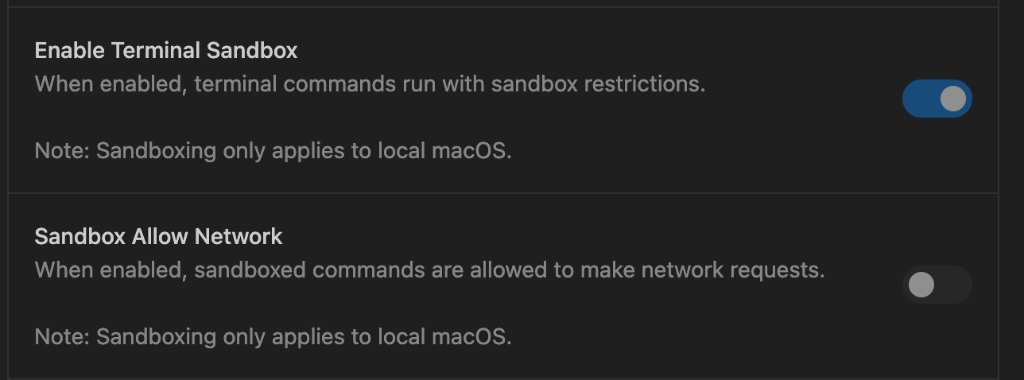
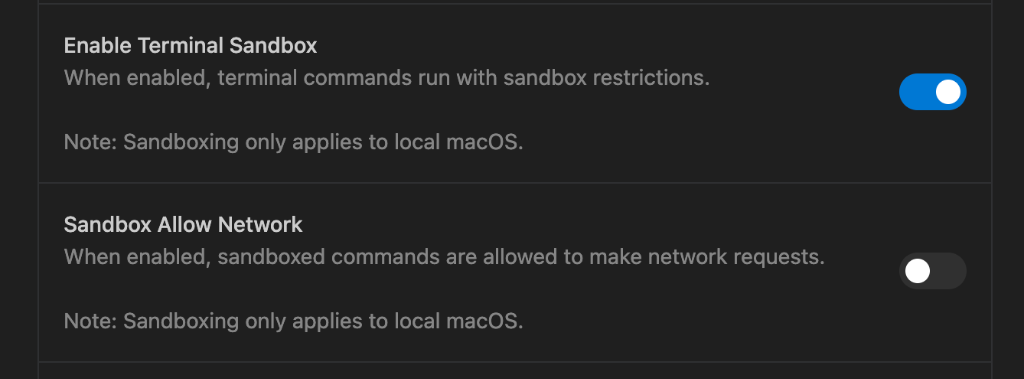
Section titled “Enabling sandboxing”You can enable or disable sandboxing in Antigravity user settings. Toggle “Enable Terminal Sandbox” to turn sandboxing on or off. When enabled, you can also control network access separately using the “Sandbox Allow Network” toggle.
Restrictions
Section titled “Restrictions”When sandboxing is enabled, the agent’s terminal commands are subject to the following restrictions:
-
File system: Commands can only write to your designated workspace directory and essential system locations. This prevents the agent from accidentally deleting or modifying files outside your project.

-
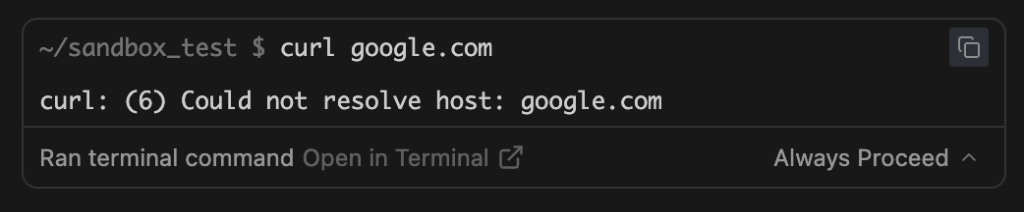
Network access: Network connectivity can be independently controlled. Use the “Sandbox Allow Network” toggle in Antigravity user settings to allow or deny network access while maintaining file system restrictions.
Here’s an example of a command being blocked due to network restrictions:
Interaction with strict mode
Section titled “Interaction with strict mode”When strict mode is enabled, sandboxing is automatically activated with network access denied. This ensures maximum protection when operating in a strict environment.