Explore our next generation products
Built for developers in the agent-first era
Everything you need to stay up-to-date and get help
Resume Command (/resume)link
Browse, search, and resume past conversation threads, or recover your last session instantly from the command line.
Overviewlink
Antigravity CLI allows you to maintain multiple ongoing development threads. The
/resume command opens an interactive Session Picker TUI panel to browse and load your history. You can also resume sessions directly from your host terminal using command-line flags.---
Interactive Session Pickerlink
To open the Session Picker inside the TUI:
- Type
/resume(or aliases/switch,/conversation) in the prompt box. - Press
Enter.
text
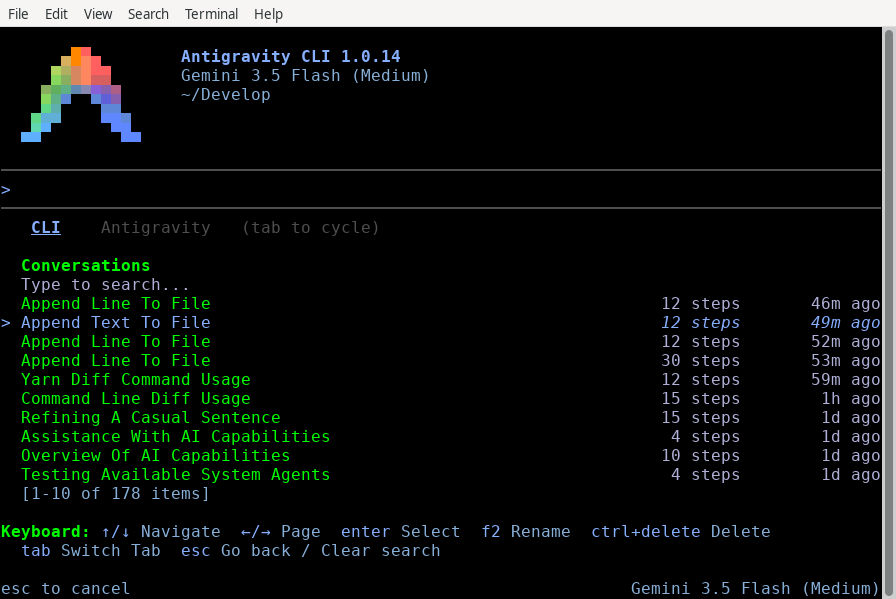
/resume1. Navigating and Searching Conversationslink
The Session Picker displays a list of past conversations sorted by recency (newest first).
- Search: Start typing to instantly filter conversations by their title, preview text, or unique ID.
- Navigate: Use
↑/↓to scroll through the filtered list. - Page: Use
←/→to page backward and forward through older history blocks. - Select: Highlight your target session and press
Enterto load it. - Exit: Press
Escto close the picker and return to the active prompt.
2. Renaming a Conversationlink
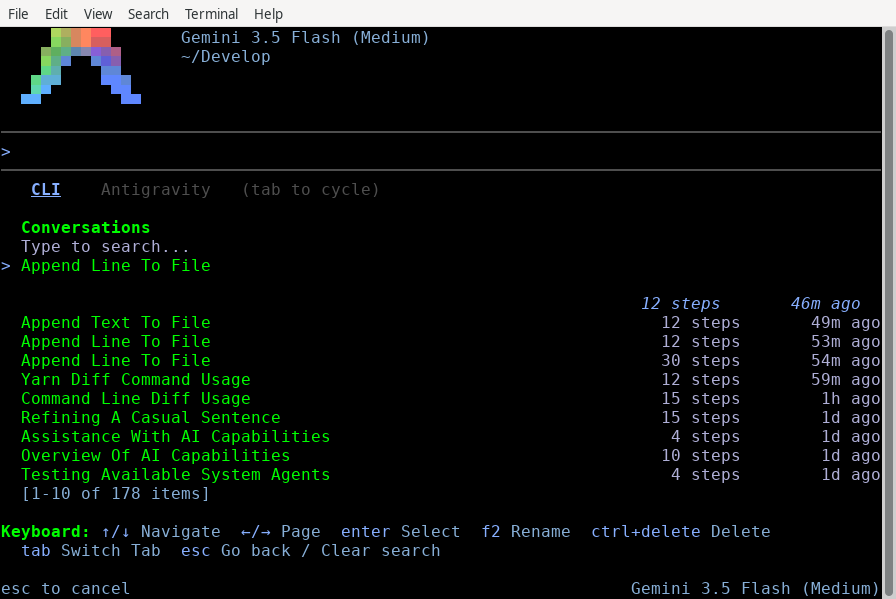
To keep your history organized, you can rename conversations directly within the picker:
- Use
↑/↓to highlight the conversation you want to rename. - Press
F2. An input field opens at the bottom of the panel, prefilled with the current title. - Type the new name and press
Enterto save, orEscto cancel.
3. Deleting a Conversationlink
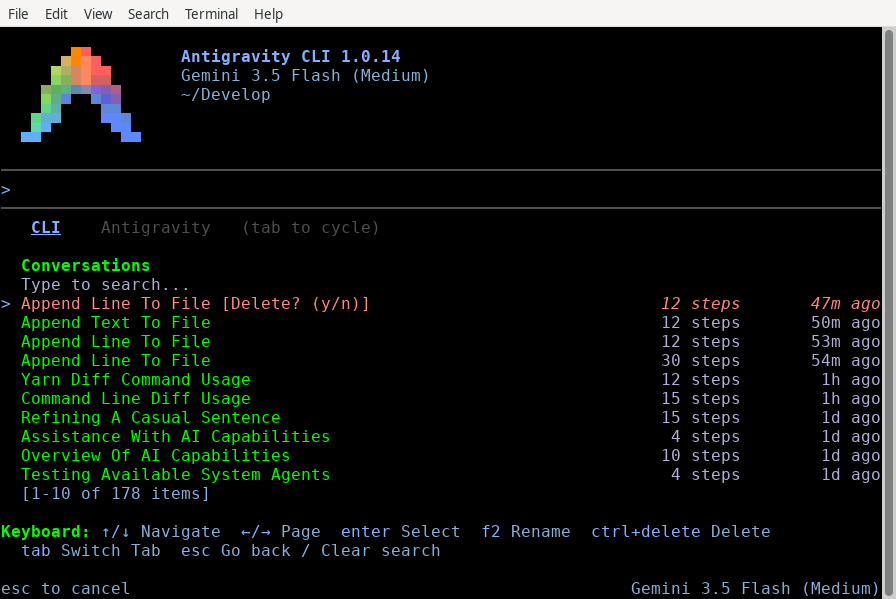
To clean up obsolete threads:
- Highlight the target conversation in the list.
- Press
Ctrl+Delete. A confirmation prompt appears. - Press
Enter(ory) to confirm deletion, orEsc(orn) to cancel.
4. Importing from Antigravity 2.0link
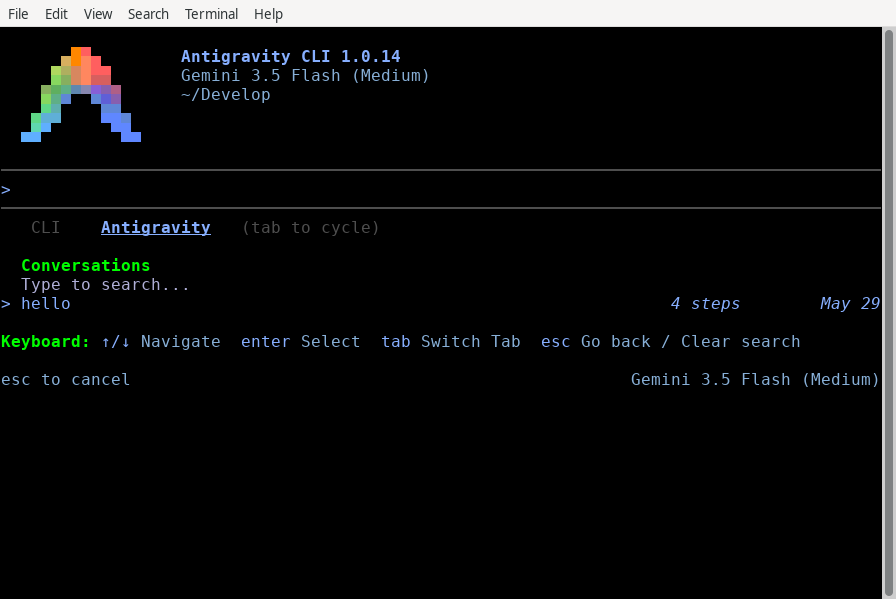
You can import and resume active threads initiated in the Antigravity 2.0 desktop application:
- With the Session Picker open, press
Tabto switch from the CLI tab to the Antigravity tab. - Highlight the desktop conversation you wish to import.
- Press
Enter. A confirmation prompt[Import this? (y/n)]appears. - Press
Enter(ory) to confirm. The CLI clones the history, context, and tool trajectories into your terminal session.
---
Command-Line Shortcutslink
You can bypass the TUI picker and resume sessions directly when launching
agy from your host shell.Quick Resume Last Session (`-c` / `--continue`)link
To instantly resume the single most recent conversation associated with your active workspace:
bash
agy -c(Alternative:
agy --continue)Resume Specific Session (`--conversation`)link
To load a specific conversation directly by its unique ID:
bash
agy --conversation <conversation-id>---
Under the Hood: The Session Cachelink
When you use the
-c / --continue flag, the CLI resolves the target session using a local workspace-keyed cache.The Cache Filelink
- Location:
~/.gemini/antigravity-cli/cache/last_conversations.json - Format: A JSON map associating absolute workspace directory paths with their most recently active conversation ID:
    {
        "/usr/local/google/home/username/Develop/my-project": "a1b2c3d4-e5f6-7890-abcd-ef1234567890",
        "/usr/local/google/home/username/Develop/another-repo": "f9e8d7c6-b5a4-3210-fedc-ba9876543210"
    }
Resolution Workflowlink
- Launch: You run
agy -cfrom/path/to/workspace. - Lookup: The CLI reads
last_conversations.jsonand looks up the key/path/to/workspace. - Verification: If an ID is found, the CLI queries the backend to verify the conversation still exists.
- Load:
- If verified, it loads the session.
- If the conversation was deleted or the key is missing, it starts a fresh session for that workspace.
---
See alsolink
- Managing Conversations: Learn about workspace scoping and branching with
/fork. - CLI Reference: See all available slash commands and default keybindings.
- Settings & Keybindings: Configure rendering modes and customize keyboard shortcuts.
On this Page