Explore our next generation products
Built for developers in the agent-first era
Everything you need to stay up-to-date and get help
Agents Command (/agents)link
Browse, select, and switch between custom agents, or monitor active and completed background subagents directly inside an interactive TUI panel.
Before you beginlink
- Install Antigravity CLI
- Understand the Asynchronous execution model
Overviewlink
The
/agents command opens the interactive Agent Manager Panel. This interface serves two distinct purposes:- Custom Agent Selection & Discovery: Choose between the default agent and custom workflow-specific agents, or discover where to define new agents locally and globally.
- Subagent Monitoring & Control: Track, inspect, or terminate background subagents running concurrently during your active session.
To open the panel inside the TUI, type
/agents and press Enter:bash
/agents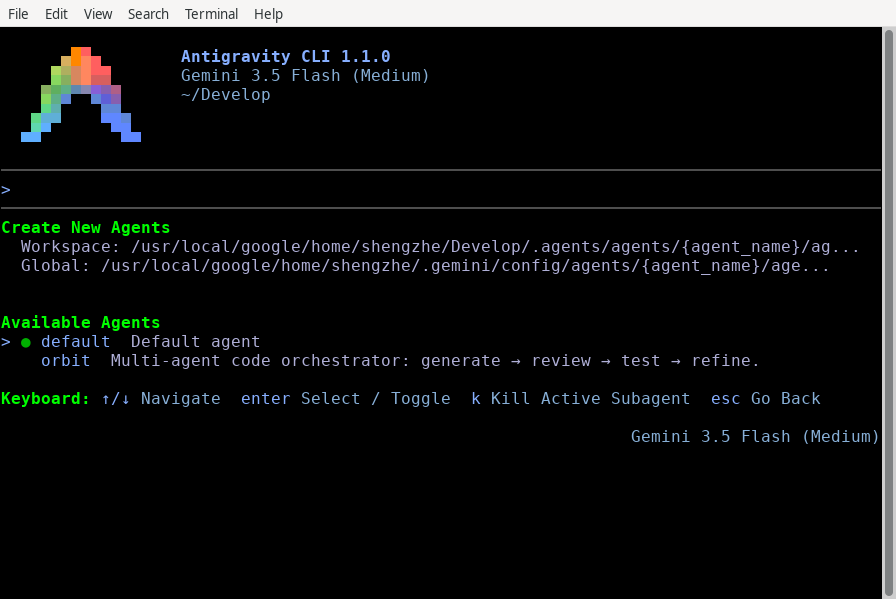
---
Custom Agent Selection & Discoverylink
Antigravity CLI supports loading custom agent definitions with specialized system instructions and tool permissions. The Available Agents section lists all agents currently available to your session.
1. Switching between agentslink
- Select: Use
↑/↓to highlight an agent (Default agentor a custom agent) under Available Agents, then pressEnter. - Status Indicator: A green circle (
●) indicates the active or prepared agent. - Apply & Exit: Press
Escto close the panel and apply your selection.
> Note: If you are currently inside an active conversation, switching custom agents automatically forks your current session (
[ Switch will fork the current conversation on exit ]) so you do not lose context. If you start from a fresh session, the switch applies directly ([ Switch will create a new conversation on exit ]).2. Creating custom agentslink
The header of the
/agents panel displays exact template locations for creating new custom agents:text
Create New Agents
  Workspace: {workspace}/.agents/agents/{agent_name}/agent.md
  Global: ~/.gemini/config/agents/{agent_name}/agent.md
To create a custom agent that is available across all your workspaces and projects, place it under your global customization directory (
~/.gemini/config/agents/). Create a directory matching your agent name and add an agent.md file with YAML frontmatter:bash
mkdir -p ~/.gemini/config/agents/code-reviewer
cat << 'EOF' > ~/.gemini/config/agents/code-reviewer/agent.md
---
name: code-reviewer
description: Rigorous code review specialist focusing on edge cases and security.
---
You are an expert code reviewer. Analyze diffs carefully and verify edge cases.
EOF
When you reopen
/agents, the CLI automatically discovers code-reviewer and lists it under Available Agents. If you need an agent scoped strictly to a single project repository, place it inside that workspace's .agents/agents/ directory (for example, /home/user/projects/my-app/.agents/agents/code-reviewer/agent.md). You can also package and distribute custom agents inside Plugins.---
Subagent Monitoring & Controllink
When your primary agent delegates tasks (such as running tests or querying large codebases), the spawned threads appear in the
/agents panel under Subagents, grouped by their triggering prompt.1. Inspecting subagent progresslink
- Group Toggling: Press
Enteron a subagent group header (▸ Subagents (1 running, 2 done)) to expand or collapse (▾) that group. - Status Indicators: Each subagent row displays a live lifecycle state:
running: Actively executing tools or generating reasoning steps.done: Successfully completed its assigned background task.error: Encountered a terminal failure during execution.killed: Terminated manually by the user or parent process.- Detail View: Highlight a specific subagent row and press
Enterto open the full-screen Subagent Detail View. This view displays the subagent's complete internal thoughts, tool calls, and execution stdout. PressEscto return to the list.
2. Terminating active subagentslink
If a background subagent loops or runs longer than needed, you can kill it immediately without leaving your session:
- Open
/agentsand highlight the running subagent row. - Press
kto kill the active subagent and all its child threads.
3. Inline tool approvalslink
If a subagent attempts a protected operation (such as modifying a file or running a shell command in a sandboxed environment), the authorization prompt displays inline in the
/agents panel. You can press a to approve or d to deny directly from the list.---
Panel Keybindings Referencelink
When focused inside the
/agents panel, the following keyboard shortcuts apply:| Key | Action | Behavior |
|---|---|---|
↑ / ↓ | Navigate | Move the cursor between headers, subagents, and available agents. |
Enter | Select / Toggle | Expand/collapse groups, open Subagent Detail View, or select a custom agent. |
k | Kill Active Subagent | Instantly cancel (CancelSubagent) the highlighted running subagent. |
Esc | Go Back | Exit the panel, return to the prompt box, and apply any prepared agent switch. |
---
Common mistakeslink
| Mistake | Why it fails | Fix |
|---|---|---|
| Expecting custom agent switches to modify the existing turn history | Switching agents inside an active thread forks the conversation to preserve historical integrity | Continue your workflow in the newly forked session with the new agent's capabilities |
Putting custom agent markdown files directly inside ~/.gemini/config/agents/ or .agents/ | The CLI scanner expects agents to live inside dedicated subdirectories under ~/.gemini/config/agents/<name>/ or .agents/agents/<name>/ | Move your agent definition to ~/.gemini/config/agents/<name>/agent.md |
Using k on completed subagents | KeyKillSubagent only targets active (running) subagent processes | Use Enter to inspect completed or failed subagent logs instead |
---
Next stepslink
- Background tasks & subagents: Learn more about the multi-threaded asynchronous execution architecture.
- Plugins & Skills: Discover how to bundle custom agents, skills, and MCP configs into shareable plugins.
- Permissions & Sandbox: Configure security guardrails and approval rules for background subagents.
On this Page