newspaperPress Guidelines
Pricing
Blog
Downloaddownload

Explore our next generation products

See overview

Products

antigravityAntigravity 2.0terminalAntigravity CLIcodeAntigravity IDEsdkAntigravity SDK

Built for developers in the agent-first era

See overview
EnterpriseFrontendFullstackScienceMarketer

Everything you need to stay up-to-date and get help

Documentationkeyboard_arrow_rightChangelogSupportPressReleases

Explore our next generation products

See overview

Products

antigravityAntigravity 2.0terminalAntigravity CLIcodeAntigravity IDEsdkAntigravity SDK

Built for developers in the agent-first era

See overview
EnterpriseFrontendFullstackScienceMarketer
Pricing
Blog

Everything you need to stay up-to-date and get help

Documentationkeyboard_arrow_rightChangelogSupportPressReleases
Home
Antigravity 2.0v2.3.1keyboard_arrow_right
Overview
Getting Started
Build with Google
Feature Overview
Models
Projects
Settingskeyboard_arrow_right
Overview
Agent Settings
Artifact Review
Customizationskeyboard_arrow_right
MCP
Skills
Rules
Plugins
Hooks
Sidecars
Agent Capabilitieskeyboard_arrow_right
Permissions
Subagents
Artifactskeyboard_arrow_right
Overview
Plan
Walkthrough
Screenshots
Antigravity CLIv1.1.5keyboard_arrow_right
Overview
Getting Started
Installation & Auth
Tutorial
Using AGY CLI
Features
Gemini Migration
Prompting
Artifactskeyboard_arrow_right
Overview
Conversations
Agent Capabilitieskeyboard_arrow_right
Choose an execution mode
Subagents
Sandbox
Permissions
Projects
Settingskeyboard_arrow_right
Overview
AI Credits
Customizationskeyboard_arrow_right
MCP
Plugins & Skills
Status Line
Window Title
Commandskeyboard_arrow_right
Agents (/agents)
Code Search (/codesearch)
AI Credits (/credits)
Diff (/diff)
Permissions (/permissions)
Resume (/resume)
Status Line (/statusline)
Window Title (/title)
Model Quotas (/usage, /quota)
Best Practices
Troubleshooting
Reference
Antigravity SDKv0.1.7keyboard_arrow_right
Overview + Quick Start
Customizationskeyboard_arrow_right
MCP
Antigravity IDEv2.1.1keyboard_arrow_right
Overview
Getting Started
Featureskeyboard_arrow_right
Tab
Side Panel
Review Changes
Artifactskeyboard_arrow_right
Plan
Walkthrough
Screenshots
Browser Recordings
Browserkeyboard_arrow_right
Overview
Allowlist / Denylist
Separate Chrome Profile
Customizationskeyboard_arrow_right
MCP
Skills
Rules
Workflows
Plugins
Hooks
Settings
Migrationkeyboard_arrow_right
Firebase Studio Migration
Enterprise
Plans
FAQ
  • side_navigation
  • Antigravity IDE
  • >
  • Features
  • >
  • Tab

Antigravity IDE: Tab & Navigationlink

This guide covers the core navigation and completion tools: Supercomplete, Tab-to-Jump, and Tab-to-Import.

Supercompletelink

Supercomplete provides code suggestions in a region near your current cursor position.
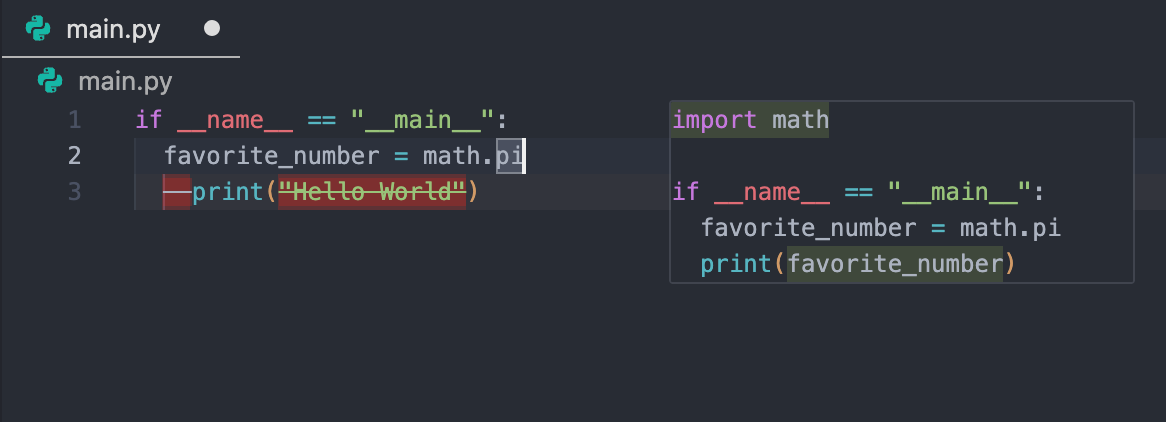
Supercomplete

How it Workslink

  • File-Wide Suggestions: Suggestions can modify code throughout the document, handling tasks like changing variable names or updating separate function definitions simultaneously.
  • Accepting: Press Tab to accept the changes.

Tab-to-Jumplink

Tab-to-Jump is a fluid navigation tool that suggests the next logical place in your document to move your cursor to.
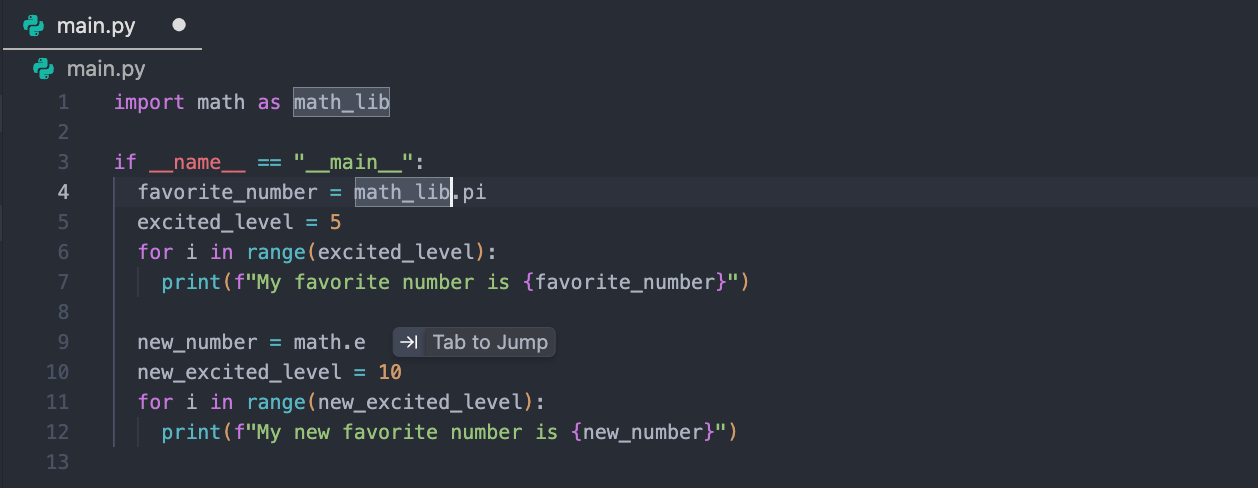
Tab-to-Jump

How it Workslink

  • A "Tab to jump" icon will appear offering to move your cursor to where your next logical edit will be. Pressing Tab instantly moves your cursor to that location.
  • Accepting: Press Tab to accept the jump.

Tab-to-Importlink

Tab-to-Import handles missing dependencies without breaking your flow.
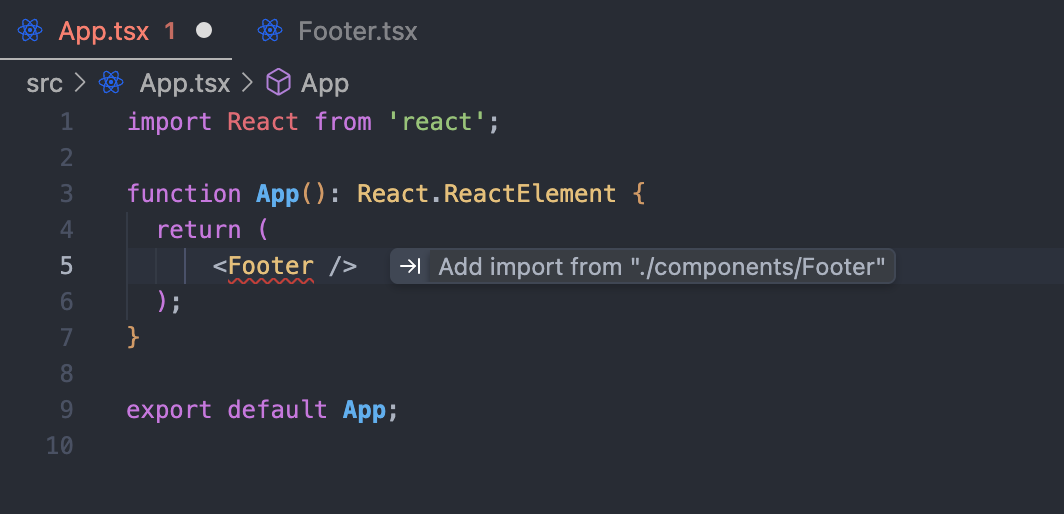
Tab-to-Import

How it Workslink

  • Detection: If you type a class or function that isn't imported, Antigravity suggests the import.
  • Action: Press Tab to complete the word and instantly add the import statement to the top of the file.

Settingslink

In your settings, you can customize the behavior of these features:
  • Enable/Disable Features: You can individually turn off Autocomplete, Tab-to-Jump, Supercomplete, or Tab-to-Import.
  • Tab Speed: Controls the responsiveness of suggestions.
  • Slow: Waits for more context before suggesting.
  • Default: Offers a balanced pace.
  • Fast: Provides rapid-fire suggestions.
  • Highlight Inserted Text: When enabled, text inserted via Tab is highlighted to track changes easily.
  • Clipboard Context: When enabled, Antigravity uses the contents of your clipboard to improve completion accuracy.
  • Allow Gitignored Files: Enables Tab features (suggestions and jumping) within files listed in your .gitignore file. Tab will only ignore gitignored files if git is installed.
Getting Started
Side Panel
On this Page
Antigravity IDE: Tab & NavigationSupercompleteTab-to-JumpTab-to-ImportSettings